
Android devices might not be able to prevent the screen from turning off natively, but there are plenty of apps in the Google Play Store that can do it. One of these is “Caffeine.” Here’s how to set it up and use it.
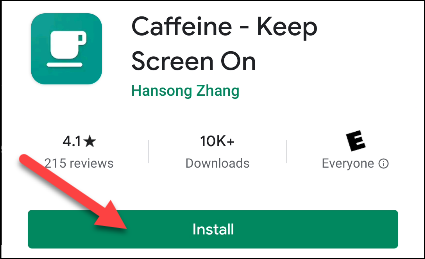
1. Download The Caffine App.
Click the link to take you to the download of "Caffine": Caffeine - Keep Screen On
Once on the page click the install button and the app will download and install.
2. Setting Up The Quick Toggle.
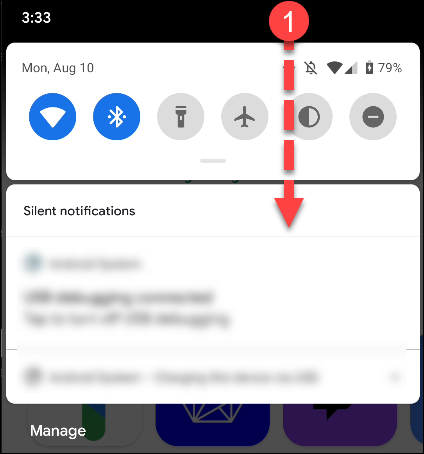
The app works via a “Quick Settings” toggle, so first, swipe down from the top of the screen twice to expand the full “Quick Settings” panel.
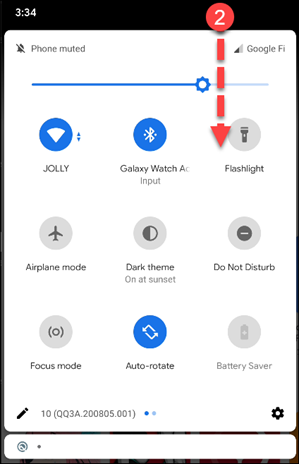
You should see a Pencil icon somewhere on the panel; tap it to edit the “Quick Settings” toggles.
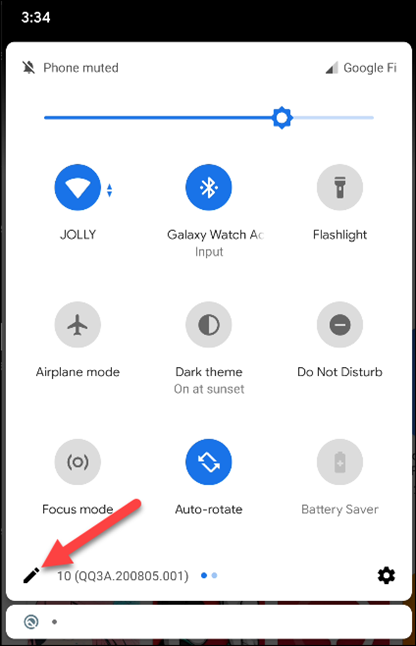
Note - On some Android devices, like Samsung phones and tablets, you have to tap the Three-dot icon, and then choose “Quick Panel Layout” to edit the Quick Settings panel.
Look for a toggle with a Coffee Mug icon.
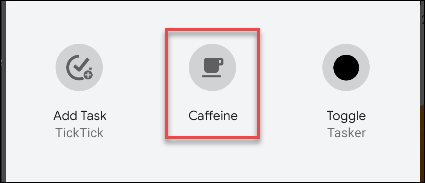
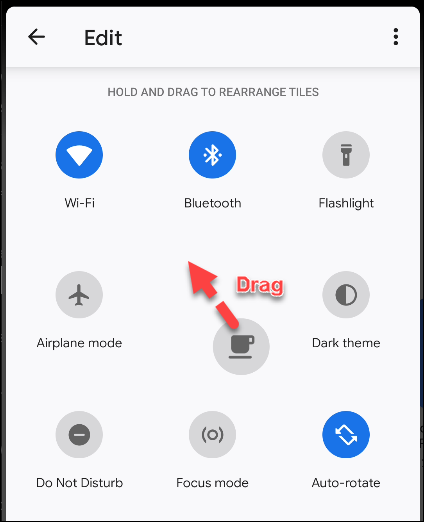
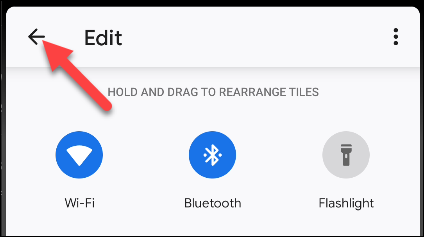
Next, move the “Caffeine” toggle to the main “Quick Settings” panel. Tap and hold it to drag it into position. On Samsung phones, you’ll drag the toggle from the top of the screen to the bottom. On Google Pixel and other phones, you’ll drag it from the bottom to the top. When the toggle is where you want it, tap the Back arrow or Checkmark icon to save.
Tap the Coffee Mug icon in “Quick Settings.”
Note - By default, the screen timeout will be changed to “Infinite” and the screen will not turn off. However if the screen does turn off make sure you change the timeout to “Infinite” by following the steps below:
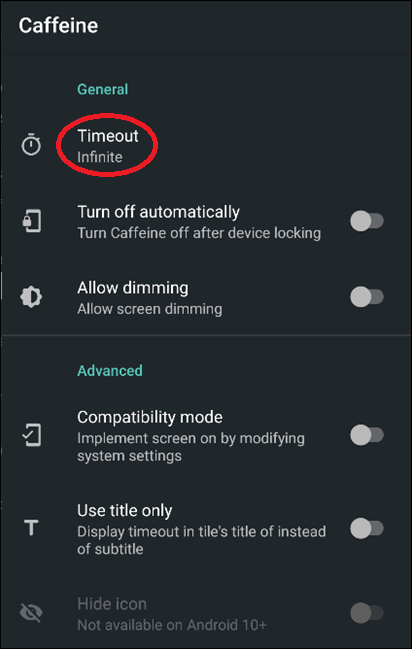
By preforming a long 'Hold' action on the coffee mug icon it will take you to Caffeine's Settings page.
Tap "Timeout" and select “Infinite”.
Disable and Re-Enable Caffine by clicking the Coffee Mug within the Quick Settings to save the change.
For any further help with Caffine please see the Caffine documentation: Caffine Docs
Comments
0 comments
Please sign in to leave a comment.