
Enable the barcode scanning feature in Chronicle Online:
Once logged in to your environment on Chronicle online you will need to enable the barcode scanner feature. To do this you will need to:
- Go to Toolbox
- Under Toolbox go to Company Settings:
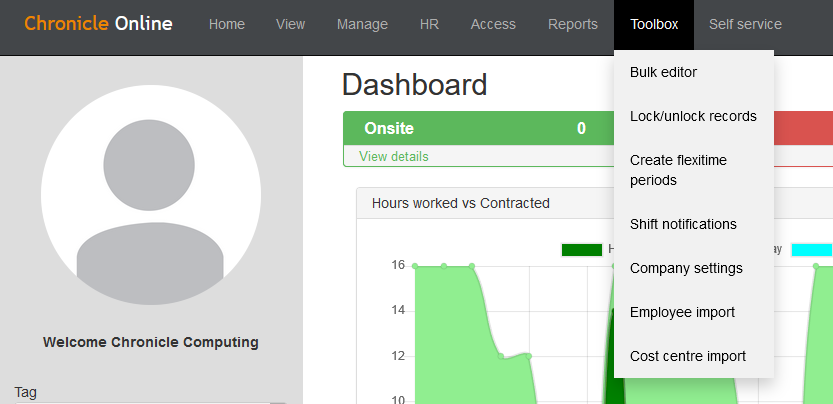
- Once Company Settings are open ensure that holiday, sickness, and absence start of the year is filled out correctly.
- Tick the "Use barcode scanner in the mobile app for Cost Centre " Tick box, the settings page should look similar to this:
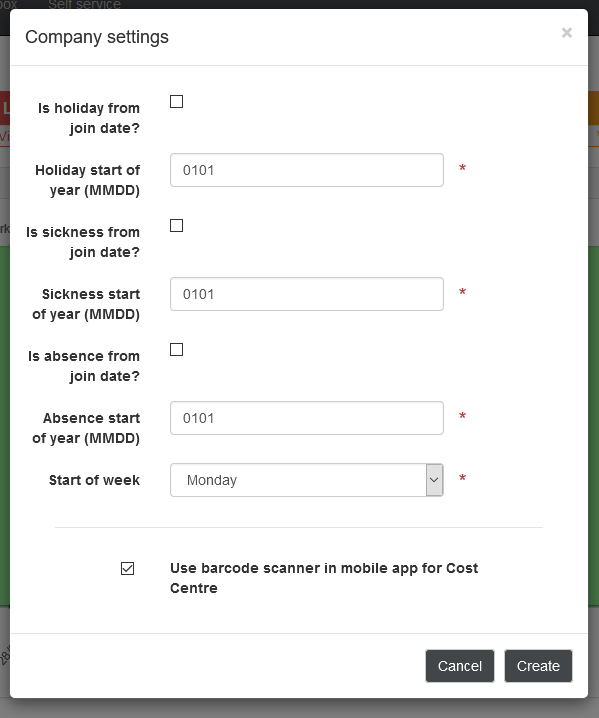
- After clicking "create" the barcode scanner will now be enabled on the mobile app.
How to use the barcode scanner on the mobile app:
Now we have enabled the barcode scanner we can put it to use on the app.
- You first need to login to the app using your credentials, however before changing your Cost Centre using the barcode scanner you need to clock in.
- After clocking in you simply need to scroll down slightly and select the "Scan Cost Centre Barcode":
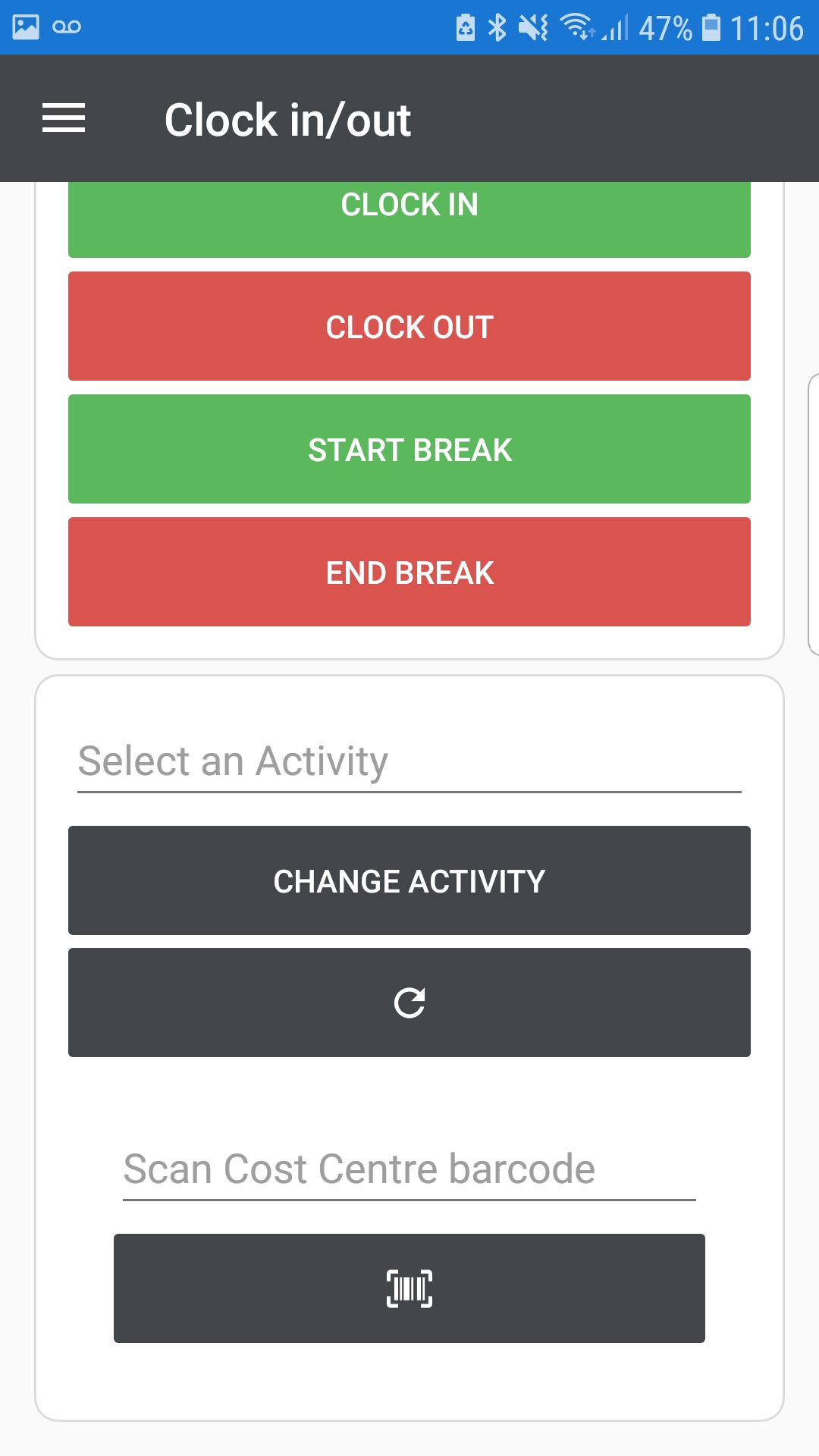
- After pressing this option you will be prompted to scan the barcode using your device's camera:

- You simply need to hover the red line over the barcode you have and it will assign you to the Cost Centre with the corresponding bar code.
- After this has completed you will see a pop-up that says "action complete" on the mobile app.
How to view a Cost Centre change on Chronicle Online:
To see when an employee changed the Cost Centre and what Cost Centre they changed to you need to:
- Go to the Live Data screen and locate an employee.
- Click the employee and double-click the day to bring up the work record.
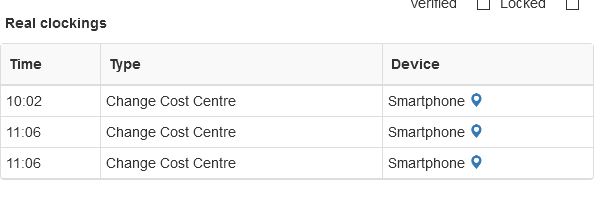
- On the work record you can see under "Real Clockins" all of the Cost Centre changes, as seen below:
Comments
0 comments
Please sign in to leave a comment.