
Daily overtime rules are a new exciting feature that the chronicle has added now allowing you to have different overtime rates for each day of the week. You will need to activate this feature for admins to be able to make one.
To do this:
- Go to settings in the top right
- Click on organization then users
- Double click on a user with admin access
- Navigate to the settings tab on the pop-out that has appeared.
- Scroll down to the bottom, tick daily overtime rules, and hit save.

Now you should have access to make this rule. If you wanted to create this rule all you would need to do is:
- Go to the settings cog in the top right
- Go to overtime rules then daily overtime rules on the left-hand side.
- Hit the green plus to add a new rule
- From here you can use the drop-down boxes to add different rates for each day.

- Finally hit create
It’s worth noting that if you wanted more bespoke overtime options you can create more in the overtime groups in settings on the left-hand side.
Finally, you need to apply this to the shifts you want this daily overtime rule to be on. To do this:
- Go to settings
- Then go to shifts and rosters then shifts
- Double click on the shift in question.
- Once in the shift navigate to fixed overtime
- Now in the "daily overtime rule" drop-down box pick the rule you’ve just made.
- You have the choice for the overtime to start after the contracted hours in the shift or after a specific time period. You can either tick the tick box for "overtime starts after contracted hours" or you can input a value in "overtime paid after" and it will apply this rule after the number of hours and minutes inputted in that field.
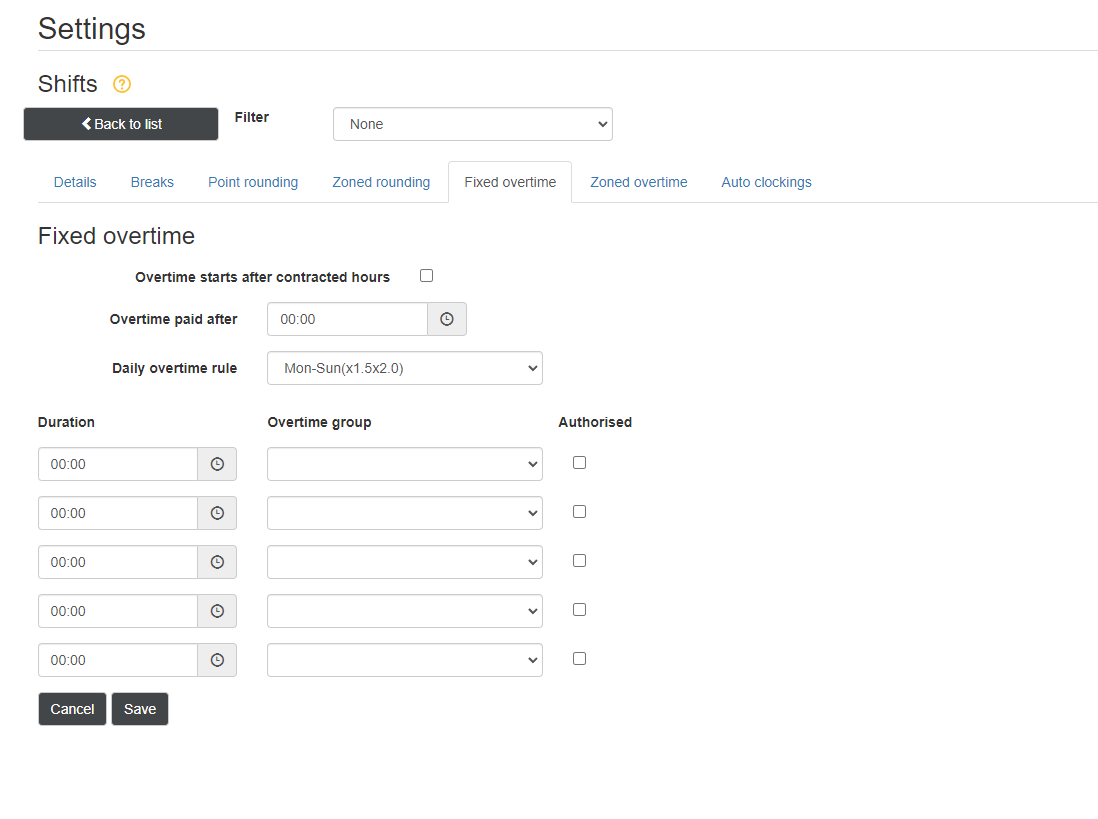
Congratulations you have made a daily overtime rule and have applied this to a shift.
Comments
0 comments
Please sign in to leave a comment.