
Create an Open Shift Called Multiple.
The first step to creating a variable shift is creating a blank shift with no start and end times against it. to do this you need to:
Goto Settings > Shifts and Rosters > Shifts and click the green Add button:
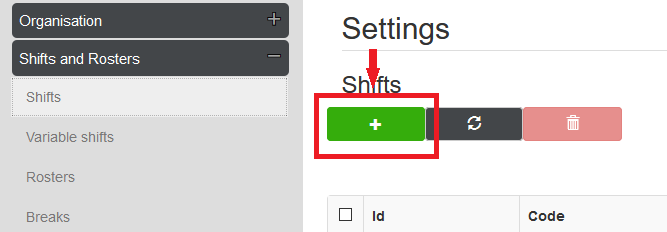
In the Code and Name Box Enter "Multiple Shifts":

Click the Create button at the bottom of the shift:

Create all relevant shifts for the day.
The next step is to create the shifts for the day. (E.g. 06:00 - 08:00, 10:00 - 12:00, 15:00 - 18:00):
IMPORTANT - Ensure all Shifts have got the must clock in between fields set. For Example, on the 06:00 - 08:00 shift we would create the shift:
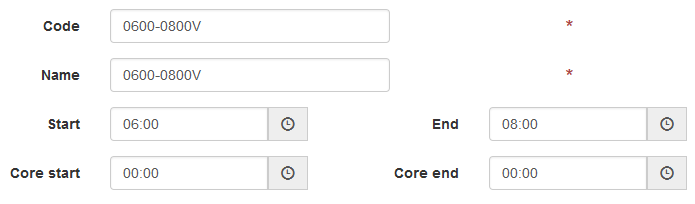
And then Ensure we have the must clock in set:

When we have the final shifts built we can create a variable shift.

Create the variable shift
To create the variable shift goto Settings > Shifts And Rosters > Variable Shifts and click the green Add Button.
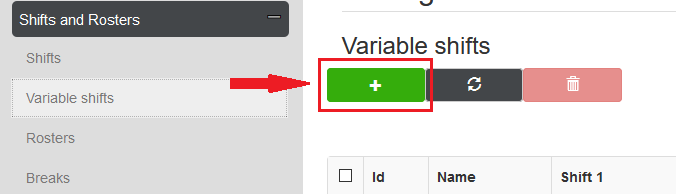
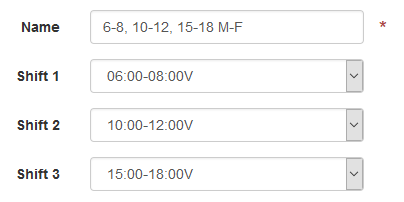
Enter the name of the Variable Shift then Select the shifts in the correct order:
Click the Create button at the bottom of the shift:
Create a Multiple Roster
The final step of this process is to create the roster which combines all of the previous steps into a recurring pattern. For my example, I will use a 7-day roster with Monday to Friday on the Variable Shift with a Rest Day on Saturday and Sunday.
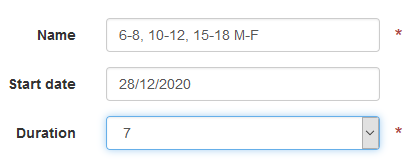
Once the Template has been added you need to assign the shifts to that template. to do this open the roster back up and assign multiple to the working days and rest to the rest days.
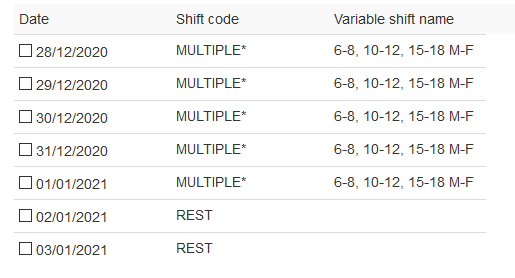
After this, we can assign our variable shift to the working says and click the save button:

Comments
0 comments
Please sign in to leave a comment.